
Home Screen Widgets
Put favorite routines and checklist tasks on your phone's Home Screen. Open Checklist and sign in before adding a widget.
| Widget | What it shows | What you can do |
|---|---|---|
| Routines | Favorite routines from the team selected in the app | Open a routine or start its run flow in the app |
| Checklist | One checklist, Priority Tasks, Due & Expired, or Recently Viewed checklists | Open a checklist or complete an available task |
These widgets live on your phone's Home Screen. To arrange widgets inside the Checklist app, see Customize the dashboard.
Add a widget on iOS
- Touch and hold an empty part of the Home Screen.
- Tap Edit, then Add Widget, or the + button on older iOS versions.
- Find Checklist and choose Routines or Checklist.
- Choose the medium or large size, tap Add Widget, then finish editing the Home Screen.
The Checklist widget requires iOS 17 or later. Both widgets show the rows that fit their size. They do not scroll; a +number in the header indicates more items. Open the app to see the full list.
For device-specific steps, see Apple's widget instructions.
Add a widget on Android
- Touch and hold an empty part of the Home Screen and choose Widgets.
- Find Checklist and choose its Routines or Checklist widget.
- Touch and hold the widget, then place it on the Home Screen. Some launchers offer an Add button instead.
- For the Checklist widget, select a checklist or Smart List and tap Save widget. Routines needs no separate setup.
Both Android widgets can scroll through their lists. To change their size, touch and hold the widget and drag its resize handles, if your launcher offers them. A larger widget gives names and extra details more room.
Controls vary by phone and launcher. See Google's widget instructions.
Choose what the Checklist widget shows
On iOS, touch and hold the Checklist widget, choose Edit Widget, then choose its Checklist setting. On Android, choose the content during setup and tap Save widget. If your launcher offers an edit or configure action, use it to change an existing widget; otherwise remove the widget and add it again.
Each Checklist widget has its own selection, so you can add more than one with different content.
- Your Checklists: choose an accessible checklist that is not archived or deleted. The widget shows its incomplete tasks.
- Priority Tasks: incomplete tasks with a priority, highest priority first.
- Due & Expired: incomplete tasks due today or overdue.
- Recently Viewed: shortcuts to checklists you have opened, rather than task checkboxes.
The choices come from the signed-in account's checklists already loaded in the app. If a checklist is missing, open it in Checklist and let the app sync, then try selecting it again.
Keep a packing list close
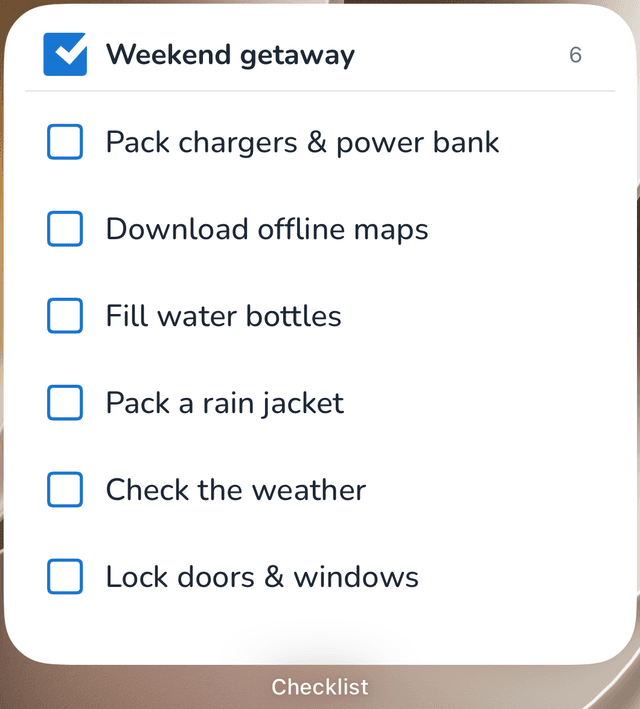
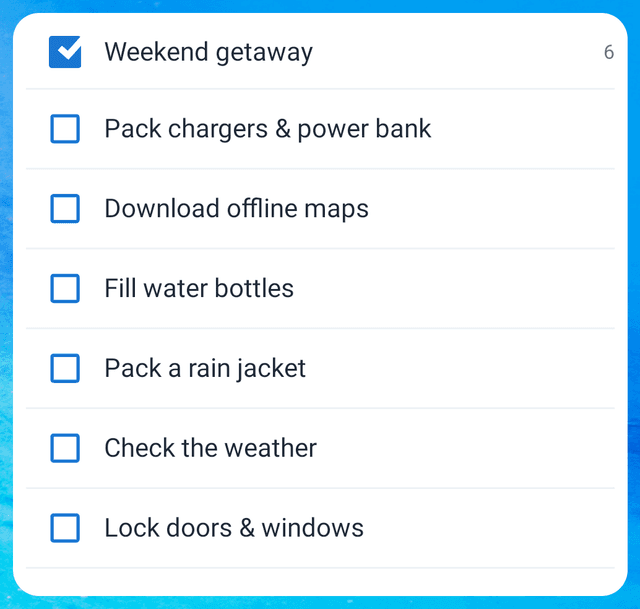
Put a weekend packing checklist on your Home Screen so you can check off essentials as you pack. Use short, specific task names that are easy to read at a glance.
iOS: this large widget keeps all six packing tasks visible.
Android: a wider widget gives task names more room. All six packing tasks fit in this example; scroll inside the widget when your list is longer.
Bring due work together
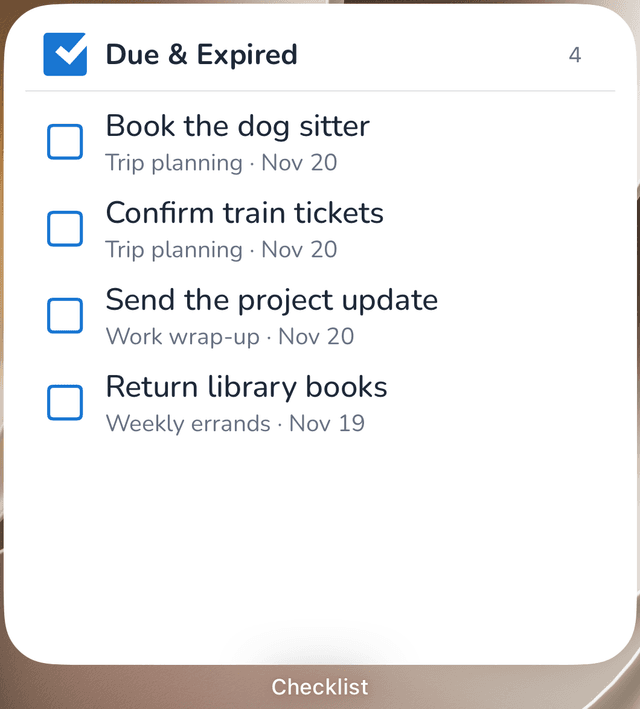
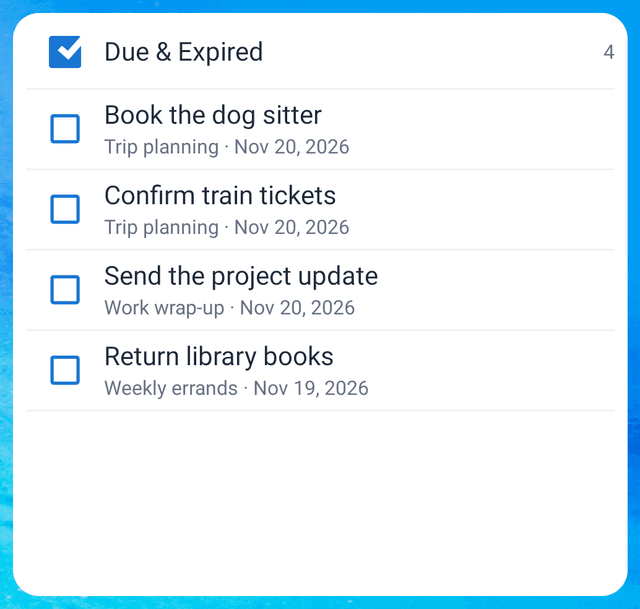
Choose Due & Expired to keep time-sensitive work from different checklists together, such as trip planning, a work update, and weekly errands.
iOS: the smaller text below each task shows its source checklist and due date.
Android: a wider widget also shows source checklist names and due dates below the tasks, so you can tell which list each item belongs to.
Task notes, answers, and attachments stay in the app. Tap a task name to open its checklist when you need those details.
Use the Routines widget
The Routines widget follows the team selected in the app. It has no separate team or routine picker. Multiple Routines widgets show the same team's favorites.
- Open Routines in Checklist and select the team you want to use.
- Open a routine's settings and turn on Favorite template, if you have permission to manage favorites.
- Return to the Home Screen to use the widget.
Tap a routine's name to open it in the app. Tap its Play button to open the app's run flow. Review the run options and start the run there; the widget does not create a checklist by itself. Tap the widget header to open Routines.
You need an internet connection and permission to run routines. Your usual plan allowance and access checks still apply. See Run a routine.
Recognize your favorites quickly
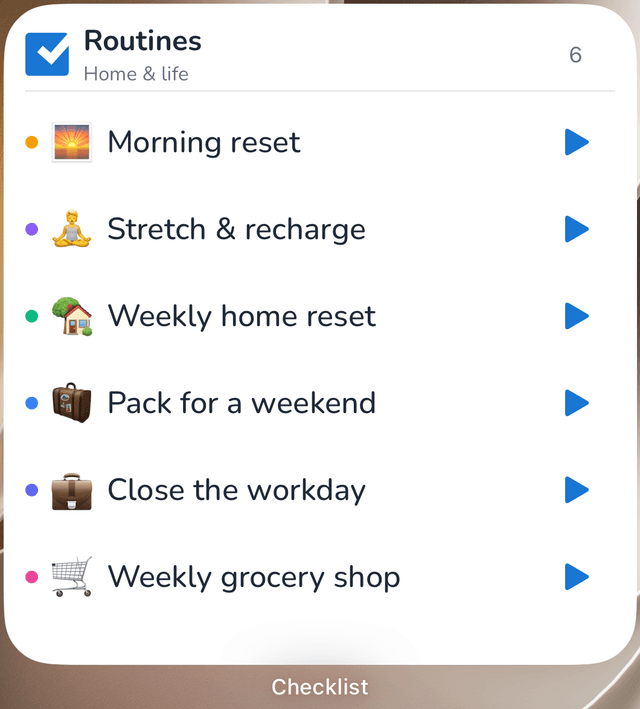
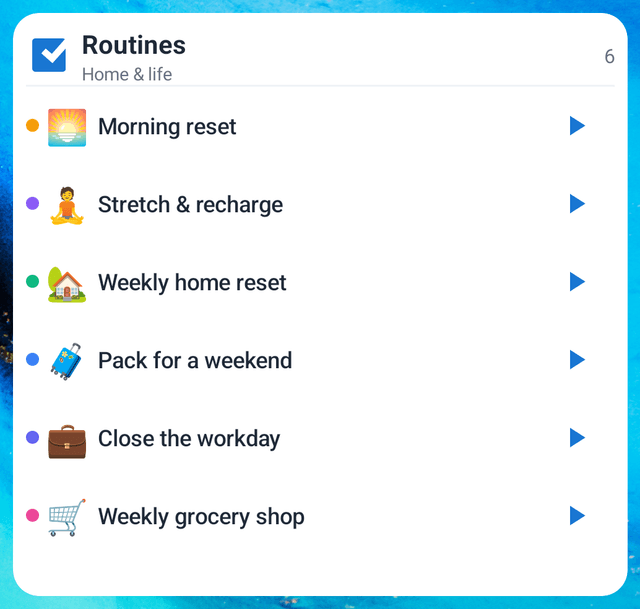
The Routines widget keeps each favorite routine's icon and color, making a morning reset, a stretch break, or a weekly home reset easy to recognize. The Play buttons open the app's run flow. Change favorites in Routine settings.
iOS
Android
Complete tasks from the Checklist widget
Tap the checkbox beside an incomplete task to mark it complete. The task leaves the widget's list. A checkbox is available only when you have permission to complete that task. To reopen a completed task or edit its details, open its checklist in the app.
Tap a task's name to open its containing checklist. In Recently Viewed, tap a checklist name to open it. A selected checklist's header opens that checklist; a Smart List header opens the app.
On iOS, checking a task does not open the app. The action is saved on the device, and Checklist applies it and syncs through its normal sync process when you next open the app. Open Checklist with an internet connection to send these changes to your other devices.
On Android, completion passes to the app when it is ready. If it is not ready, the action waits on the device until the app next opens. Changes made offline sync after you reconnect. A task disappearing from the widget does not confirm that other devices have received the change.
Checklist checks access again when applying a completion. If the task or your access has changed, open the checklist in the app to check its current state.
Refresh and troubleshoot
Widgets show the latest data shared by the app. They do not fetch fresh checklists or routines independently, and updates can take a moment to appear. There is no refresh button in these widgets.
If content looks old, open Checklist, confirm the account and selected team, and let it sync before returning to the Home Screen. This is also how you refresh due-task results as the day changes. See Mobile Sync.
- No routines: check the selected team, your permission to run routines, and whether any routines are favorites. Reconnect and open the app if routines could not load.
- No tasks: the selected list may have no incomplete tasks matching it. Recently Viewed stays empty until you open checklists.
- Sign-in or unavailable message: open Checklist and sign in. After changing accounts, choose the Checklist widget's content again; an old account's selection is not transferred automatically.
- A selected checklist disappears: check whether it was archived, deleted, or is no longer shared with you, then select another checklist if needed.
- Widgets missing from the picker: update Checklist and open it once, then check the picker again. The iOS Checklist widget also needs iOS 17 or later.
Removing a widget only removes the Home Screen shortcut. It does not delete your routines, checklists, or tasks.